

The conclusion first. The Webflow CMS is a feature for mass-producing pages that share a design, and it lets you build pages you keep updating, such as a blog, news, or a portfolio. After the pricing revision of May 2026, using the CMS requires the Premium plan ($25/month billed annually, $39/month billed monthly).
This article explains Webflow’s CMS. I will cover the CMS techniques we use at Webharu and, conversely, the things about the Webflow CMS that feel inconvenient, based on actual experience. Do have a read.
So, let’s look at what the Webflow CMS can do.
Key takeaways
- Webflow CMS — what it means
- The Webflow CMS is the Webflow feature for mass-producing pages that share a design. It is used to build pages you keep updating, such as a blog or news, and requires the Premium plan ($25/month billed annually after the May 2026 revision), which handles up to 20,000 CMS items and 40 collections.
Contents
Everything the Webflow CMS can do [2026 edition]
Here is a list of what the Webflow CMS can do.
- Create blogs, news and the like
- Build pages that follow proper HTML tags
- Automatic basic SEO
- Automatic breadcrumb generation
- Embed YouTube inside articles
- Register authors and credit an author on each article
- Sort by genre and color-code by genre
Those are the features I mainly use. The basic way to build a page is explained below under “The basic steps for building a CMS page in Webflow.” Here, let me go through the features above in a little more detail.
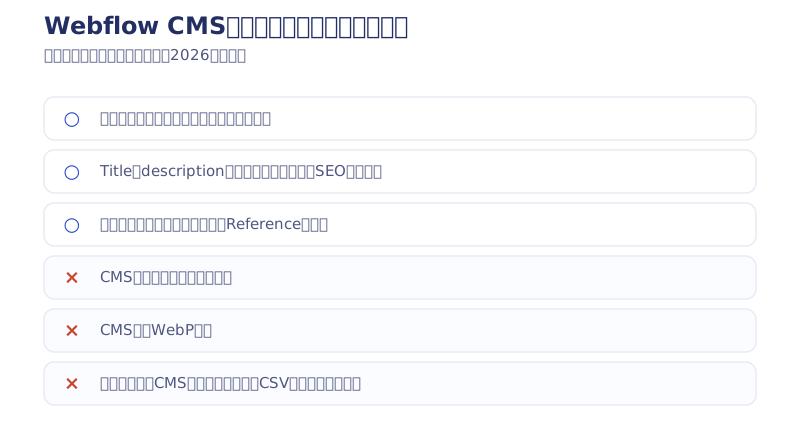
The Webflow CMS can create blogs, news and the like
Put simply, a CMS is “a feature for mass-producing pages that share a design.” You use it to build pages you update regularly, such as a blog or a news page. In Webflow you can construct the CMS freely, so you can build one with no waste, tailored to you.
The Webflow CMS is adopted in three stages
The Webflow CMS is adopted in three stages: the CMS fields, the design of the CMS page, and binding the design to the CMS fields. The specific operations are explained in the next section, “The basic steps for building a CMS page in Webflow.”
Linking several CMS collections enables advanced CMS operation
Sorting by genre, registering authors and so on are done by creating other collections and linking to them. Using several collections together is the standard approach. Color-coding by genre, registering authors, showing recommended articles and the like not only raise your efficiency but also make SEO work easy.
The basic steps for building a CMS page in Webflow [5 steps]
The conclusion: a CMS page in Webflow is built in five steps — ① create the collection → ② design the fields → ③ add items → ④ design the template page → ⑤ bind the fields and publish. The admin interface keeps being updated, so I am showing the steps as text rather than screenshots (following the interface as of 2026).
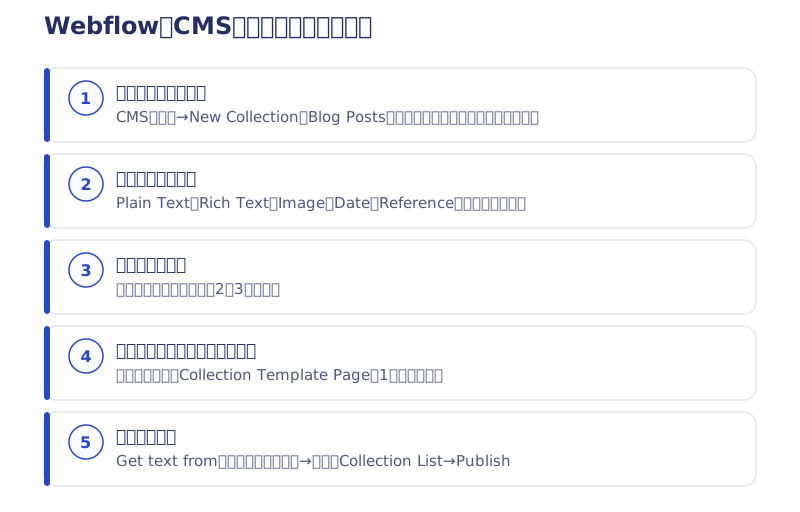
- Create the collection: choose New Collection from the CMS icon in the Designer’s left panel. Pick a template such as Blog Posts and the standard fields — title, body, thumbnail — are prepared from the start.
- Design the fields: add fields of the types you need, such as Plain Text (title), Rich Text (body), Image (thumbnail), Date (publication date) and Reference (linking to categories or authors). For genre sorting and author credits, the standard approach is to create a separate collection and connect it with Reference.
- Add items: put two or three articles into the collection you created. Dummy content for checking the design is fine.
- Design the template page: creating a collection automatically generates a Collection Template Page. Design that one page and the same design applies to every item.
- Bind the fields and publish: on each element, such as a heading or an image, choose the collection field from “Get text from” (the binding setting) and connect it. On the index page, place a Collection List to lay the items out, then publish with Publish.
If you want to learn Webflow’s operation systematically, try the 21-day course for mastering Webflow (a guide to Webflow University) as well.
What is inconvenient about the Webflow CMS, and what it cannot do [the small bugs only daily use reveals]
Webflow has many advanced features, but it is not 100% satisfying. Here I will introduce the things worth watching out for before adopting the Webflow CMS, from actual experience of using it.
- [Bug] Text sometimes does not save
- CMS content cannot be used in sliders
- Tables of contents are not easy to build
- Code export needs to be handled separately.
- There is no WebP conversion in the CMS
Let me go through these in order.
[Bug] Writing directly in the Webflow CMS breaks about 10% of the time (first-hand)
When you write directly in the Webflow CMS, it occasionally stops saving, or the text does not take. Once the bug happens, reloading fixes it, but your work is not saved. Guard against it by saving often and using a Chrome extension that keeps what you have written. Best of all is to write in another notes app.
When the bug is most likely (my own observation)
Save immediately after using a link, using a list, or inserting an image. Using H tags does not trigger the bug, but with the other features it happens about 10% of the time. There were also times when it looked fine but had not saved. It is precisely because it is only about 10% that you let your guard down.
Losing unsaved work is genuinely demoralizing, so use a notepad or a text editor. The Webflow CMS reads H tags and link tags across as they are, so writing in a notes app and pasting in works well.
The Webflow CMS cannot be used in sliders
Webflow has a built-in feature for making sliders. But you cannot use CMS images in a slider. Inconvenient. CMS sliders built with custom code are shared as templates, so using one of those works around it.
At Webharu we use something simpler: not a slider but something you view by scrolling. Like this ↓
Building a table of contents with the CMS is a chore
A table of contents is exactly what you want when writing a long article. WordPress and the like seem to build one with a plugin, but Webflow does not work that way. Building a table of contents in Webflow requires the slightly tedious approach of building it in code, or giving each section an ID and linking to them.
The way we build the table of contents at Webharu is covered in the article below.
>> The simplest table of contents in Webflow, with no custom code
If you would rather paste in code to build one, this article is the place to go
>>How to add an automatically generated table of contents to a blog page built in Webflow (Japanese)
There is no WebP conversion in the Webflow CMS
It is slightly awkward that images you insert cannot be converted to WebP. I convert to WebP with Saruwaka’s WebP tool every time. Static pages can all be converted, so I would like the CMS to be able to convert too.
>>Saruwaka’s WebP tool is here (Japanese)
Code export needs to be handled separately.
Webflow cannot export CMS data together with the code. The CMS parts therefore show nothing and come out with holes in them. If you want to see the code, go here.
>>See the actual code exported from Webflow (Japanese)
The CMS can be exported separately in CSV format. Export as CSV and import it into WordPress or another no-code tool.
The handy Webflow CMS features a Webflow specialist uses
Here are the Webflow CMS features we use most often at Webharu when we are commissioned to build a site.
- Automating everything from color-coding to SEO through article creation alone
- Editing Webflow CMS articles in place
- Building the CMS into custom code
Let me go through them in order.
Automating everything from color-coding to SEO through article creation alone
Used well, Webflow’s CMS can automate everything from color-coding by genre to SEO. On the SEO side you can automate title tags, description tags, structured data and breadcrumbs. Linking collections also makes internal linking easy to handle.
At Webharu we use that knowledge to automate on-site SEO, and from there we handle keyword strategy, market research, rank tracking and article production ourselves. That is why our Site Care Plan’s Managed tier (from ¥50,000/month, as of October 2026, excl. tax) can propose improvements based on real GA4 and Search Console data and keep working all the way through to fixing them.
Editing Webflow CMS articles in place
Webflow has three modes: Settings, Designer and Editor. To edit an article you have created directly, you use the Editor. In 2023 the Editor was substantially improved and reloads became faster. As of 2025 you can rewrite articles directly while still in the Designer.
The Editor has its quirks, though, and there is a lag of a few seconds while it loads content you have already created. Plenty of lag looks like this ↓
Building the Webflow CMS into custom code
Used well, Webflow’s CMS lets you build CMS information into custom code. First, take a look at the following.

By choosing CMS items from “+ Add Field” at the top right, you can drop the information entered for each CMS article into the code. Commissioning us, or hiring a programmer, lets you develop more advanced automated features.
The cost and the plans for using the Webflow CMS [revised May 2026]
The conclusion: after the pricing revision of May 2026, using the CMS in Webflow requires the Premium plan ($25/month billed annually, $39/month billed monthly). The old CMS plan ($23/month) has been discontinued. Sites that do not need the CMS can use Basic ($15/month billed annually, 300 static pages), and the free Starter plan lets you try the CMS with limits on a webflow.io domain. Premium handles up to 20,000 CMS items and 40 collections.
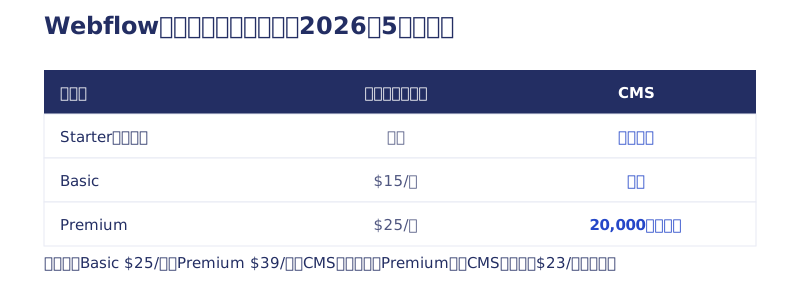
The detail of each plan and how to choose between them is collected in the guide to Webflow’s pricing plans [May 2026 revision].
[First-hand] Switching from free to paid meant no redirects, and I threw away every ranking I had earned
I ran my first 30 articles on the free plan. But after switching to paid I could not set up redirects, and every ranking I had earned was thrown away. If you want to grow a domain, build on a paid plan from your very first article.
For the record, if it were me today I would write about 20 articles, and if it went well I would set up JS redirects and get from zero to one for free. Whether the rankings carry over is doubtful, though.
Is the Webflow CMS expensive or cheap?
I once posted a price comparison on Twitter between Webflow and STUDIO, the Japanese no-code tool. Here it is ↓
Webflow とSTADIO値段比較
— 春|Webflow専門解説ブログ運営 (@METANA_flow) January 20, 2023
※(1ドル130円換算)
独自ドメイン接続
Webflow:1820円/月
STADIO:980円/ 月
CMS 利用時
Webflow:2990/月
STADIO:1980/ 月
STUDIOめちゃ安いですね。それに比べてWebflow は結構高めです。他どんな比較を知りたいですか? #ノーコード #Webデザイン #Webライター
Honestly, you can see that Webflow is expensive compared with STUDIO. So if you are building a small site cheaply, STUDIO is a reasonable choice too.
(2026 update: the figures in the post above are from the old plans as they stood in 2023. After the May 2026 revision, Webflow is Premium at $25/month billed annually with the CMS, and Basic at $15/month billed annually without it. STUDIO has kept revising its pricing too, so check each official pricing page for current figures. A detailed comparison of the two tools is collected on the Webflow and STUDIO comparison page.)
Lately, among the people saying “I want to build a site in Webflow,” there are those migrating from STUDIO and from WordPress. Many of them want to scale the site up or to add an online store, and against that background Webflow can be seen as suited to large sites and worth paying more for.
In the latest news of 2023, Webflow gained the ability to paste in designs from Figma. Since there is no telling which tool will survive, choosing a tool with an export feature is essential. On that point Webflow is strong, because you can change at any time.
If “updating” means only the blog and news, HaruCMS is another option
The Webflow CMS is powerful, but as long as you have the site you keep paying the Premium subscription ($300 a year when billed annually). For a small or mid-sized site where updating means little more than the blog and news, there is also the option of pairing a static site with HaruCMS, the Japan-made CMS we developed, which keeps the running cost down while preserving design freedom. This site itself has moved from Webflow to a static site and runs on exactly that setup — see HaruCMS.
What we do at Webharu in our “Webflow CMS builds that need no programmer”
Finally, here is what we do in the “Webflow CMS builds that need no programmer” we carry out at Webharu. It looks simple at a glance, but doing the following produces a site that needs no programmer. It does not go well without a certain amount of specialist knowledge, so learn each feature before implementing it.
- Write annotations in Japanese on every item
- Give things names that are easy to understand
- Provide support on using the Webflow CMS after the build
Seeing it is quicker than reading about it, so here is part of one.
Part of a Webflow CMS actually delivered to a client

By writing field names and annotations as above, you can build a CMS where even someone who is neither a programmer nor a specialist can tell at a glance what to enter. The photo above is only a fraction of it, but you can see immediately what information belongs where. That is why the clients who commission us are satisfied with as little as 30 minutes of support on how to use it.
After that, as you actually run the site, you finish the CMS off with adjustments like “I want an image here” or “we do not need this information after all.” We also support ways of customizing it yourself.
Building a CMS with no experience tends to leave item links, names and features in a muddle. When you build a CMS on your own, make sure you have a firm grasp of the names, the annotations and the link targets as you go.
Webharu builds Webflow sites
Our motto is building websites that need no programmer, and we build Webflow sites on that basis. If it interests you, start with a consultation.
That was the complete guide to understanding the Webflow CMS. Questions and enquiries are welcome through the contact form.
Selected work

JTB Americas
A full renewal of the North America site, with the operations team able to update it themselves

Hosted by Nippon TV
High-fidelity Figma-to-Webflow conversion, with load speed and responsiveness optimized

PonTech Lab Inc.
Built with AI (Claude Code) on Next.js and Cloudflare, with the build process published
FAQ
How much does it cost to use the Webflow CMS?
After the pricing revision of May 2026 you need the Premium plan ($25/month billed annually, $39/month billed monthly), which handles up to 20,000 CMS items and 40 collections. Sites that do not need the CMS can use Basic ($15/month billed annually), and the free Starter plan lets you try the CMS with limits.
What are the steps for building a CMS page in Webflow?
Five steps. ① Create a collection in the CMS panel ② design the fields you need, such as Plain Text, Rich Text, Image and Reference ③ add two or three items ④ design the Collection Template Page that is generated automatically ⑤ bind fields to each element and publish with Publish.
Is there anything the Webflow CMS cannot do?
There are limits: CMS images cannot be used in sliders, tables of contents are not easy to build, there is no WebP conversion in the CMS, and CMS data cannot be exported together with the code. CMS data can be exported separately in CSV format.
Is there a way around the bug where text does not save in the Webflow CMS?
Using links, lists and image insertion triggers a save-failure bug about 10% of the time (it does not happen with H tags alone). Once it happens, a reload fixes the display but your work is not saved, so writing in another editor such as a notes app and pasting in is the reliable method.
Is it all right to start a blog on Webflow’s free plan?
I would not recommend it. I ran 30 articles free and then switched to paid, and because redirects were not possible every ranking I had earned was thrown away. If you want to grow a domain, building on a paid plan from your first article is the safe route.
Webflow CMS or HaruCMS — which should I choose?
Choose Webflow (Premium, $25/month billed annually) if you want design freedom and large-scale CMS operation. For a small or mid-sized site where updating centers on the blog and news, pairing a static site with HaruCMS keeps the running cost lower. This site itself runs on the static site plus HaruCMS setup.
![How to Choose a Webflow Agency: Cost and 5 Quote Checks [From a Rival Founder]](/assets/posts/thumb-webflow-agency-choice.avif?v=4c985a91)

![Webflow vs STUDIO: Pricing, CMS, and Which to Choose [2026]](/assets/posts/thumb-webflow-vs-studio.avif?v=7e977456)