
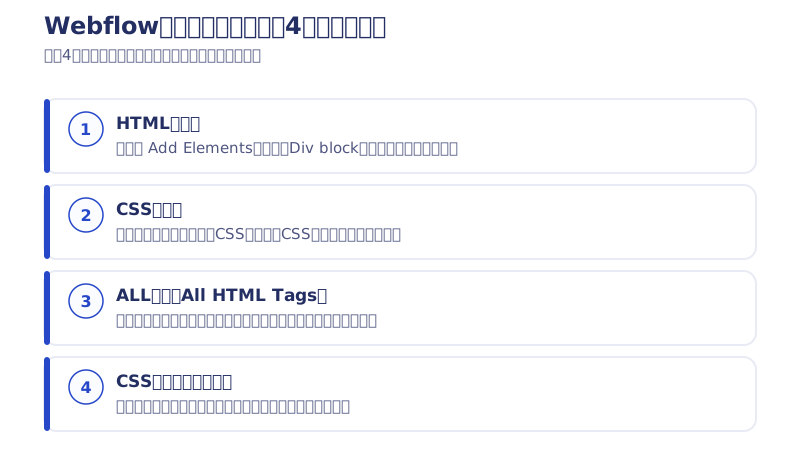
Hi, I’m Kurita, Representative Director of Webharu Inc.. This article covers the fundamentals of working in Webflow. Here is what it covers.
- Webflow basics 1: where the HTML lives
- Webflow basics 2: where the CSS lives
- Webflow basics 3: the All tags
- Webflow basics 4: what the colors in the CSS panel mean
The conclusion first: simply knowing those four things at the outset — where the HTML lives, where the CSS lives, the All tags and what the CSS panel colors mean — makes working in Webflow ten times faster. Go on without them and you end up with a site where you cannot tell what to edit.
Note (2026): the screenshots in this article were taken at the time of writing. Webflow keeps updating its UI, so names and placements may have changed in the current version. The underlying ideas themselves — All tags, and the color coding of the CSS panel — have not changed.
Plenty of people work in Webflow without knowing about All tags or what the CSS panel colors mean, so let us go through them properly.
I regularly coach and advise Webflow learners directly, and the questions that come up most in that work — my link color will not change, I do not know what to edit — are all answered in this article. If any of it sounds unfamiliar, read on.
I decided to try YouTube and recorded a video. I am not used to filming and I am a beginner at it, so it may be hard to watch. Please bear with me. It is a small start, in the hope that one day the filming gets better too.
Key takeaways
- All HTML Tags (All tags) — what it means
- All HTML Tags, or All tags, are Webflow selectors that let you set a shared base value across every element of the same type. They are the equivalent of setting base values through class selectors in CSS, and they can be overridden by ordinary classes (blue tags).
Contents
The premise behind using Webflow: why the element names matter
Webflow’s UI actually uses the very same names as HTML, CSS and JavaScript code. Div block, heading, margin, padding — if you have ever studied the basics of HTML and CSS, these are familiar words.
Plenty of other elements use their code names as they are too. That helps you picture the code you will get when you export, and it is a thoughtful design for existing web developers as well.
So why does it matter to know the names of Webflow’s elements? Because it makes you able to look things up for yourself.
Say you are building a site in Webflow and hit “I do not understand the difference between margin and padding.” This is Webflow, so you decide to ask someone who knows Webflow well.
But you do not have anyone who knows Webflow well and is easy to ask.
So you go and look it up on Webflow’s official site.
And you sink, because it is all in English.
That is how people give up.
Plenty of people say they do not understand how to use blending, or position:sticky. But you can search “CSS blending how to use” or “CSS position:sticky how to use” and find out exactly what conditions make them work.
Once you know how HTML and CSS behave, you can bring that into Webflow and make it work. So whenever there is something you do not understand in Webflow, search the element’s name exactly as it is. Do that and you can resolve most of the basic behavior of HTML and CSS on your own.
Webflow basics: where the HTML lives and where the CSS lives
Where the HTML lives
From here on we are into Webflow’s own UI — the part you will only find on Webflow’s official site, however hard you search. First, get clear on which part is HTML and which part is CSS.

Start by clicking Add Elements, the “+” at the top left. The HTML elements appear.

This is essentially your HTML. Items such as V Flex and H Flex, added in an update around early 2024, are Webflow originals. Search for them and plenty of Webflow articles come up, which is how you can tell.
Honestly, I barely use those items. It comes down to taste, but personally I find a Div block with no initial styling easier.
For the other elements, look them up as you go if you are unsure. Mostly, though, they are intuitive. In fact, early on I only studied HTML and CSS lightly, to the point where I could build one simple site. Everything else I worked out intuitively and by searching, so you can teach yourself the same way, for free.
Where the CSS lives
Next, where the CSS lives. This one is very easy: almost everything on the right side of the screen is CSS.

The CSS names are almost verbatim too, so any “what on earth is this?” feature can be found with a search. These days GPT can answer them as well. Something like this.

That came out better than I expected. It looks like the explanation is barely needed any more.
Webflow basics: the All tags
All tags — I call them the pink tags, but their proper name is All HTML Tags. I think of them as the equivalent of setting the base value for each element in the class section of your CSS.

You can find an All tag by selecting, say, an H1 element and then clicking the Style Selector at the top of the CSS panel while it is empty.
All tags apply the same effect to every element of the same type, but they sit at the very bottom of the hierarchy. (In the code they come at the very top, and in code, later declarations override earlier ones.)
That is why the contents of a pink tag can be overridden by a blue tag. A blue tag is the same thing as a normal CSS class.
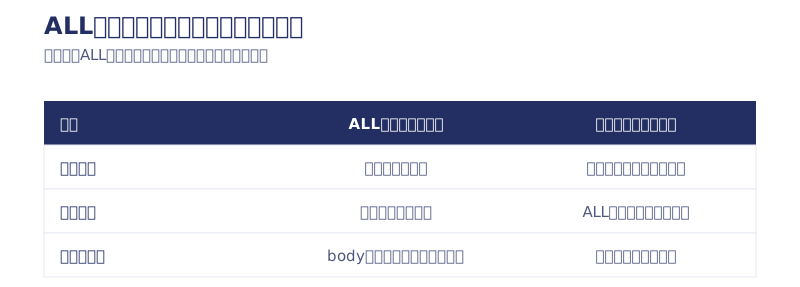
For instance, if you want to change the font across the whole site, select the All tag body and choose the font for the entire site there. If that had been set on a normal class (a blue tag) called Body, it would not carry over when you build another page, and you would end up pasting that blue Body tag on again and again.
Does the difference between All tags and blue tags make sense now? Here is the question I am asked more than any other.
[The number-one question] Q. My link color will not change in Webflow.

A. Set it on the All tag for Link and change it there.
For some reason, Webflow treats the Link tag as having no color set by default. Yet the links you insert are blue from the start. Perhaps the thinking is that this is built into HTML and has nothing to do with CSS — but in that case, what about all the other elements?
H1, H2 and the rest have font sizes that differ from the default, and those are reflected in Webflow’s CSS panel. Links alone do not have their color reflected there, which makes it genuinely hard to find.
And unlike ordinary code, putting a color on the parent element does not carry through, so you have to put the color on the Link itself. Doing that every time is tedious, so use the All Links tag to set the color and remove the underline.
That was number one in the ranking of things you are guaranteed to get lost on if you do not know about All tags.
Webflow basics: what the colors in the CSS panel mean

In the image above, the font is showing in blue. Weight and size are orange. Let us zoom in.
In this image you can see that:
- the H1 class has the font Droid Serif set on it
- Weight, Size, Height and so on are inherited from other elements
That is what it tells us.
The word font showing in blue means a CSS value is set directly on that class.

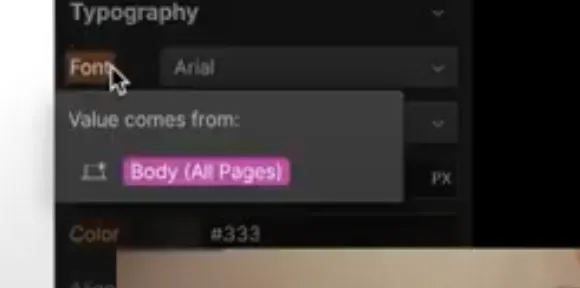
Incidentally, clicking an orange value shows you where that value is inherited from. When you go on to build a site from a template, for example, collapsing everything as shown below makes the values much easier to read.

See the orange and blue dots next to Typography? They show that values are set there. When you are working through a template and changing things, watch for the blue dots and you can quickly track down where a value came from, then delete or change it.

Take care to delete every unnecessary blue value. They can have effects in places you did not expect. Webflow in particular demands attention right down to the responsive design, so a meaningless value is sometimes exactly what is breaking your mobile site.
In summary
That is about the whole of the basic knowledge you absolutely should have.
Where the HTML lives, where the CSS lives, the existence of All tags, and what the colors in the CSS panel mean.

Work in Webflow without knowing these and your site turns into a tangle, and you carry on without being able to tell what to edit.
Start by putting the base values into the All tags, and then write as little CSS as you can on top of that. Do that and you keep the design consistent, and get closer to a site that is easier to manage and harder to break. If you are looking for Webflow learning or a community, come along to the free Webflow community I run. It is not exactly buzzing, but you will find fellow Webflow users there. I hope we meet again somewhere. See you.
(2026 update: announcements of the latest information now go out through the newsletter (emails are in Japanese) alone.)
Your next step: learning more about how to use Webflow
Once the four fundamentals are in place, move on according to what you want to do. Between the topic-by-topic index, how to use Webflow, every topic organized, and the fastest route to learning Webflow (2026 edition), you can pick the path that matches what you want to build.
Selected work

JTB Americas
A full renewal of the North America site, with the operations team able to update it themselves

Hosted by Nippon TV
High-fidelity Figma-to-Webflow conversion, with load speed and responsiveness optimized

PonTech Lab Inc.
Built with AI (Claude Code) on Next.js and Cloudflare, with the build process published
FAQ
What do I do when a link color will not change in Webflow?
Select the All tag for Link and change it there. In Webflow, putting a color on the parent element does not carry through to links, so setting the color and removing the underline on the All Links tag is the reliable fix.
Where do I find the All tags in Webflow?
Select an element such as an H1, then click the Style Selector at the top of the CSS panel while it is empty. The contents of an All tag can be overridden by a blue tag, which is an ordinary class.
How do I change the font across my whole Webflow site?
Select the All tag body and set the font for the whole site there. If you set it on a normal class (a blue tag) called Body, it will not carry over when you build another page and you will end up pasting it on again and again.
What do the blue and orange colors in Webflow’s CSS panel mean?
Blue means a CSS value is set directly on that class. Orange means the value is inherited from another element. Click an orange value and you can see where it is inherited from.
Is there a trick to learning how to use Webflow in the shortest time?
Knowing that the item names in the UI are the same names used in HTML and CSS. Anything you do not recognize can almost always be solved by searching the CSS property name together with the words how to use, or by asking an AI. Getting the four fundamentals down first — where the HTML lives, where the CSS lives, the All tags and what the CSS panel colors mean — makes working ten times faster.
Does this article still apply to the current 2026 UI?
Yes. The screenshots were taken at the time of writing, so names and placements may have changed in the current UI, but the underlying ideas — All tags, and the CSS panel color coding, where blue means set directly and orange means inherited — have not changed.
![How to Choose a Webflow Agency: Cost and 5 Quote Checks [From a Rival Founder]](/assets/posts/thumb-webflow-agency-choice.avif?v=4c985a91)

![Webflow vs STUDIO: Pricing, CMS, and Which to Choose [2026]](/assets/posts/thumb-webflow-vs-studio.avif?v=7e977456)